nuDefend documentation
nuDefend is a lightweight agent that protects Linux and Windows Server — in any cloud or on-premises — by blocking known malicious IP addresses and domains in inbound and outbound traffic. Your privacy comes first: the agent only downloads a cryptographically signed threat list. No information about your traffic ever leaves your server.
Requirements
- A Linux server (x86-64 or ARM64) with systemd.
- Root access to run the one-line installer.
- Outbound HTTPS to fetch the signed blocklist.
- Your license key (from your welcome email or the AWS setup page).
- Windows Server has a separate section further down this page.
What each operating system supports
Server protection features differ between Linux and Windows Server. The table shows what currently works on each system.
Supported systems
- Linux
- x86-64 or ARM64, with systemd
- Windows Server
- Windows Server 2019, 2022 and 2025, with an x64 processor
Malicious IP blocking
- Linux
- Yes
- Windows Server
- Yes
Malicious domain blocking
- Linux
- Yes
- Windows Server
- Yes, through the hosts file, up to 10,000 domains
Country blocking
- Linux
- Yes
- Windows Server
- Yes
Blocking password-guessing attempts
- Linux
- Yes: SSH, mail (Postfix and Dovecot), FTP (vsftpd) and website login pages
- Windows Server
- Yes: RDP, SMB, WinRM, SQL Server and IIS
Mapping exposed services and tracking changes
- Linux
- Yes
- Windows Server
- Yes
Closing an exposed service from nuDefend
- Linux
- Yes
- Windows Server
- No. A PowerShell command is shown to fix the rule
Trusted administrator addresses
- Linux
- Yes
- Windows Server
- Yes
Detecting AI tools running on the server
- Linux
- Yes
- Windows Server
- No
Tracking and restricting AI tool destinations
- Linux
- Yes
- Windows Server
- No
Local dashboard
- Linux
- Yes
- Windows Server
- Yes
Automatic updates with signature verification
- Linux
- Yes
- Windows Server
- Yes
Network protection is a separate product. It can only be installed on a Linux computer.
Install in one line
This is the fastest way, and it works on any Linux server anywhere. Open an SSH session to the server you want to protect and run the command below once. Replace <YOUR_LICENSE_KEY> with the license key from your welcome email or your AWS setup page.
curl -sSL https://get.nudefend.com | sudo bash -s <YOUR_LICENSE_KEY>Not sure what each part means? Here is the same command, explained:
curl -sSL https://get.nudefend.com
Downloads the official installer script over a secure (HTTPS) connection. -sSL means “download quietly, but still show me errors, and follow redirects”.
| sudo bash
Runs that script with administrator (root) rights, which is required to set up the firewall. sudo may ask for your server password.
-s <YOUR_LICENSE_KEY>
Passes your personal license key to the installer so the server is registered to your subscription. Keep this key private — it is like a password.
Step-by-step: what the installer does
- 1
Connect to your server
From your computer, open a terminal and connect over SSH, e.g.ssh user@your-server-ip. On AWS this is usuallyssh ec2-user@…orssh ubuntu@…with your key file. - 2
Run the one-line installer
Paste the command above. It downloads the agent, installs it to/usr/local/bin/nudefend, and registers a background service (systemd) so it starts automatically on every reboot. - 3
Protection turns on immediately
The agent downloads the signed threat list and applies it to the firewall right away. Malicious IPs and domains are blocked from that moment on — inbound and outbound. - 4
It keeps itself up to date
Every 30 minutes the agent fetches the latest signed list automatically. You never have to update it by hand. - 5
Check it is working
Runsudo nudefend status. You should see your license as active, a blocklist version, and a count of blocked packets.
Windows Server
nuDefend also runs on Windows Server. Install it using a PowerShell script or an MSI package. It runs in the background as a Windows service named nuDefend.
Requirements
- Windows Server 2019, 2022 or 2025, including Server Core, on an x64 processor.
- A Windows PowerShell window opened with administrator privileges (Run as Administrator). Do not use PowerShell ISE: the installer cannot prompt for the key there.
- Outbound HTTPS access, either direct or through a proxy.
- Your license key from the client area.
Installation using the script
Open PowerShell as an administrator and run these two lines. The script prompts for your license key without displaying it on screen. This keeps the key out of the command line and its history.
irm https://get.nudefend.com/windows -OutFile nudefend-install.ps1
powershell -ExecutionPolicy Bypass -File .\nudefend-install.ps1
When finished, the script displays the protection status and the dashboard URL.
How the installer verifies the download
Before installation, the script checks that the MSI file's hash matches the hash in the SHA256SUMS file we published. It also checks that the file has a valid Authenticode signature from NU - V.P.N LTD. A file that does not pass both checks is rejected and is not installed.
Unattended installation (RMM)
Save the key in a text file containing only the key, and pass the file path using the -KeyFile parameter. The script copies the key to a protected folder. Your file remains unchanged.
powershell -ExecutionPolicy Bypass -File .\nudefend-install.ps1 -KeyFile C:\path\key.txtOn a server that connects to the internet through a proxy, add -Proxy followed by the proxy address. This address is used both for the download and by the nuDefend service after installation.
powershell -ExecutionPolicy Bypass -File .\nudefend-install.ps1 -Proxy http://proxy.example.local:8080Silent installation through GPO or RMM, without the script
You can deploy the MSI package directly. Use this method when Group Policy (GPO) sets a script execution policy on the servers, as the script may not run in that case. The package is available at https://downloads.nuvpn.com/defend/agent/windows/nudefend-windows-amd64.msi:
msiexec /i nudefend-windows-amd64.msi KEYFILE=C:\path\key.txt /qn /norestart /l*v C:\Windows\Temp\nudefend-install.logYou can also use KEY=<key>, but the command line may be saved in system logs and RMM records. Using KEYFILE is therefore preferable.
Activation at a later stage
Without KEY or KEYFILE, the package installs the services, which then wait for a key. When the key is ready, activate as follows:
& "C:\Program Files\nuDefend\nudefend.exe" install --key-file C:\path\key.txtWhat is active on Windows
The following features currently work on Windows Server:
- Malicious IP address blocking through Windows Filtering Platform.
- Country blocking (geo) based on your selection in the client area.
- Malicious domain blocking through the hosts file, up to 10,000 domains.
- A local dashboard.
- Automatic blocking of password-guessing attempts (RDP, SMB, WinRM, SQL Server and IIS).
- A map of exposed services, with monitoring for new services.
After three failed login attempts from the same address within 10 minutes, the address is temporarily blocked from making new connections. Existing connections remain active. The block lasts longer each time the attempts recur. A signed-in Remote Desktop session from that address and trusted admin addresses configured in the license are exempt from blocking. Detection uses the Windows security log for RDP, SMB and WinRM, failed login events from SQL Server, and IIS log files.
The map shows every TCP and UDP service listening on the server, along with the process and Windows service running it. Each service falls into one of four categories: reachable from the internet, reachable only from the local network, blocked by Windows Firewall, or reachable only from the server itself. Windows Firewall information is read from the effective policy, including local rules and Group Policy rules, based on the active profiles. If a live connection from a public address reaches a port classified as blocked, nuDefend reports that its classification is incorrect.
Each service flagged for review includes an explanation: what the service is, why it was flagged, and what can be done through it. Beside the explanation is a PowerShell command you can copy to fix the rule that exposed the service.
Every 15 minutes, nuDefend scans again and reports when a service becomes reachable from outside or a new reachable service appears. The map is available in the dashboard, in the Reachable from outside panel with the Scan now button, and on the command line. --now runs an immediate scan instead of showing the last scan, and --json returns the result as JSON:
& "C:\Program Files\nuDefend\nudefend.exe" expose
& "C:\Program Files\nuDefend\nudefend.exe" expose --now
& "C:\Program Files\nuDefend\nudefend.exe" expose --json
Exposure events are logged in Event Viewer under the nuDefend source:
- 70: A service became reachable from outside, or a new reachable service appeared.
- 71: The scan failed.
- 72: Could not read Windows Firewall.
The map reflects what is visible from within the server. Cloud provider firewalls, such as AWS Security Group or Azure NSG, and third-party firewalls are not visible from within the server. A service marked as reachable may therefore be blocked by those firewalls. WinNAT, Hyper-V, and Docker Desktop port mappings are shown as observations only. No information from the map leaves the server.
Automatic updates
The agent updates automatically. At each license check, every 30 minutes, it checks for a new version. If a new version is available, it downloads the MSI package and installs it in the background. Installation proceeds only after the package passes both checks performed by the installer: its hash matches the hash in our signed update list, and it has a valid Authenticode signature from NU - V.P.N LTD.
Windows Installer replaces the previous version in a single operation. If installation fails, the previous version remains installed and continues to run. The update does not stop your services, and the nuDefend entries in the hosts file remain in place throughout the update.
Installations deployed directly from the MSI package, through GPO or RMM, update in the same way.
Update control
To update now, without waiting for the next check:
& "C:\Program Files\nuDefend\nudefend.exe" update-agentTo manage versions yourself, turn off automatic updates and deploy the new MSI package as usual. The new package replaces the previous one. auto on turns automatic updates back on.
& "C:\Program Files\nuDefend\nudefend.exe" update-agent auto off
& "C:\Program Files\nuDefend\nudefend.exe" update-agent auto on
Details of the most recent update—the previous and new versions, the result, and the time—appear in the output of nudefend status and in the dashboard. nuDefend also records events in Event Viewer, under Windows Logs → Application, with nuDefend as the source. You can monitor these events through RMM:
- 60: Automatic update started.
- 61: Update completed.
- 62: The update was not installed, and the previous version continues to run. This event is also recorded when the update will only complete the next time Windows starts.
- 63: The update was rejected, for example because the package failed the signature check.
Dashboard
The dashboard listens only on 127.0.0.1:8666. Open the URL printed by the installer in a browser on the server itself. The URL includes your access key. To print it again:
& "C:\Program Files\nuDefend\nudefend.exe" dashboard urlFrom another computer, connect through an SSH tunnel, then open the printed URL in a browser:
ssh -L 8666:127.0.0.1:8666 administrator@your-serverUninstallation
There are three ways to uninstall, each of which removes everything:
& "C:\Program Files\nuDefend\nudefend.exe" uninstall- Settings → Apps → nuDefend → Uninstall.
msiexec /x nudefend-windows-amd64.msi /qn
Uninstallation removes the services, the network filters, the nuDefend block of lines in the hosts file, and the nuDefend folder in ProgramData. Your own lines in the hosts file remain exactly as they were, character for character.
Network DNS protection
One Linux computer on your network protects every device on it: computers, phones, printers and smart devices. When a device tries to reach a known phishing or malware domain, it receives a response saying the name does not exist and cannot reach the domain. Nothing needs to be installed on the devices themselves.
Requirements
- One always-on Linux computer on the network with a fixed IP address. Reserve the address on the router (DHCP reservation) or set it manually on the computer.
- The nuDefend agent installed on this computer with a network license. A network license covers up to 50 devices.
- No other DNS service running on this computer.
- Access to the router’s DHCP settings.
Step 1: Install the agent
Install the agent on the computer using the standard server installation command and the license key from your customer account. See One-line installation.
Step 2: Enable network protection
Run the following command on the computer. Replace the three values with the values for your network:
sudo nudefend network enable --interface <lan-interface> --upstream <router-ip> --address <this-computer-ip>--interface <lan-interface>
The name of the computer’s internal network interface, such as eth0. You can find it in the output of ip -4 addr. Do not use an interface connected directly to the internet, as this would make the computer an open DNS server accessible to anyone.
--upstream <router-ip>
The address of the router or DNS server the network has been using. Queries for names that are not blocked are sent to this address.
--address <this-computer-ip>
This computer’s fixed IP address. The router will give devices this address as their DNS server.
--client-subnet <cidr>
Optional. An additional internal network, such as a VLAN, whose devices will also use this computer. You can specify this flag more than once. Devices on networks that are not included will not receive a response.
Before making any changes, the command checks the computer and the router. If a check fails, nothing changes and the command explains what to fix. When it finishes, it prints the remaining steps to complete on the router.
Step 3: Configure the router
- In the DHCP settings, set this computer’s address as the only DNS server.
- Do not set a secondary DNS server. Devices can use it at any time, and queries sent to it are not filtered.
- Disable IPv6 DNS server advertisements (RDNSS and DHCPv6 DNS) so devices do not receive another DNS server over IPv6.
On most routers, this setting is under local network (LAN) settings, in the DHCP server section, in a field called DNS Server or Primary DNS. IPv6 DNS settings are usually on the IPv6 or LAN IPv6 page. Devices receive the new DNS server when they renew their address or reconnect to the network.
Office networks with Active Directory
On a network with Active Directory, keep the AD DNS servers as the devices’ DNS servers so internal names continue to resolve. In AD DNS, set this computer as the forwarder for external names. This ensures every external name is checked. In this setup, the device count shows only the domain controller, because it is the only device that queries the computer.
Status and management
sudo nudefend network statusShows whether protection is filtering queries, which address queries are sent to and whether it responds, how many queries have been blocked, and how many devices have been seen in the last 30 days. For machine-readable output, add --json.sudo nudefend network disableStops filtering. DNS on the network continues to work without filtering.sudo nudefend network remove --dhcp-revertedRemoves network protection completely, including the data collected about the network. Run this only after restoring the previous DNS setting on the router. Without the flag, the command refuses to run.The same information appears in the Network DNS panel of the local dashboard and on a line in the output of nudefend status.
Uninstalling the agent (nudefend uninstall) stops filtering but leaves DNS running so the network is not left without DNS. The uninstall command prints the commands to remove the remaining DNS service. It is best to restore the router’s DNS setting first, run nudefend network remove --dhcp-reverted, and then uninstall the agent.
What happens when something goes wrong
The nuDefend service stops or restarts
Name resolution on the network continues without filtering until the service is running again. During a restart, this takes a few seconds.
The computer is off or booting
The network has no DNS until the computer is running again. In our test, the computer resumed answering about 8 seconds after it booted. This is why the computer must stay on and why no secondary DNS server is configured.
The router’s DNS server is not responding
The network has no DNS, just as it would without nuDefend. The sudo nudefend network status command shows whether the server is responding.
The computer’s firewall blocks queries passing through it
nuDefend detects the block and reports the problem in sudo nudefend network status and the dashboard. It does not change your firewall.
What is not filtered
- Devices and browsers that use their own encrypted DNS (DoH or DoT). In an organization, disable this through browser policy:
DnsOverHttpsModeset tooffin Chrome and Edge, andDNSOverHTTPSin Firefox. - Devices configured with a fixed DNS server instead of the server provided by the router.
- DNS over TCP. These queries are answered normally, without filtering.
- DNS over IPv6. This is why IPv6 DNS server advertisements must be disabled on the router.
Privacy
Per-device details are stored only on this computer: how many queries each device sent, how many were blocked, and which names were blocked. These details are kept for 7 days. At most, the total number of devices seen may be sent outside the computer, without addresses or names. nudefend network remove also deletes this data.
Setting up through AWS Marketplace
If you subscribed through AWS Marketplace, after checkout you are sent to your setup page. The first time, you fill in a short form. Here is exactly what each field means:
Full name
Your name (or your company’s name). We use it only to address you in your welcome email and on invoices.
Where we send your welcome email, your license key and billing receipts. Use an address you check — it is your record of the license key.
After you submit, the page shows everything you need:
Install command
Your ready-to-paste one-line installer, with your license key already filled in. Copy it and run it on each server. This is all most customers need.
Install on my EC2 instances (1-click)
Optional. Opens a CloudFormation stack that installs nuDefend on your tagged EC2 instances automatically via AWS Systems Manager — entirely inside your own AWS account. We get no access to your servers.
Enable SSM (prerequisite)
Only shown if your account still needs the AWS Systems Manager role the 1-click installer relies on. It is a one-time setup and it too runs inside your account.
License key
Your unique key. It also appears in your email. You can reuse it on every server up to the number of servers your plan allows.
Your protected servers
A live list of servers already running the agent, showing each server's IP address, operating system, agent version and last check-in time, with an “Open dashboard” button for each. Empty until your first server checks in.
You can return to this page anytime from the AWS Console → AWS Marketplace → Manage subscriptions → nuDefend → “Set up product”. It always shows your current license and servers — you never lose access.
The dashboard
Each server runs its own private dashboard, served locally over HTTPS on port 8666 and protected by a 256-bit token. It is read-only and never sends data anywhere. Print its URL on the server with:
sudo nudefend dashboard url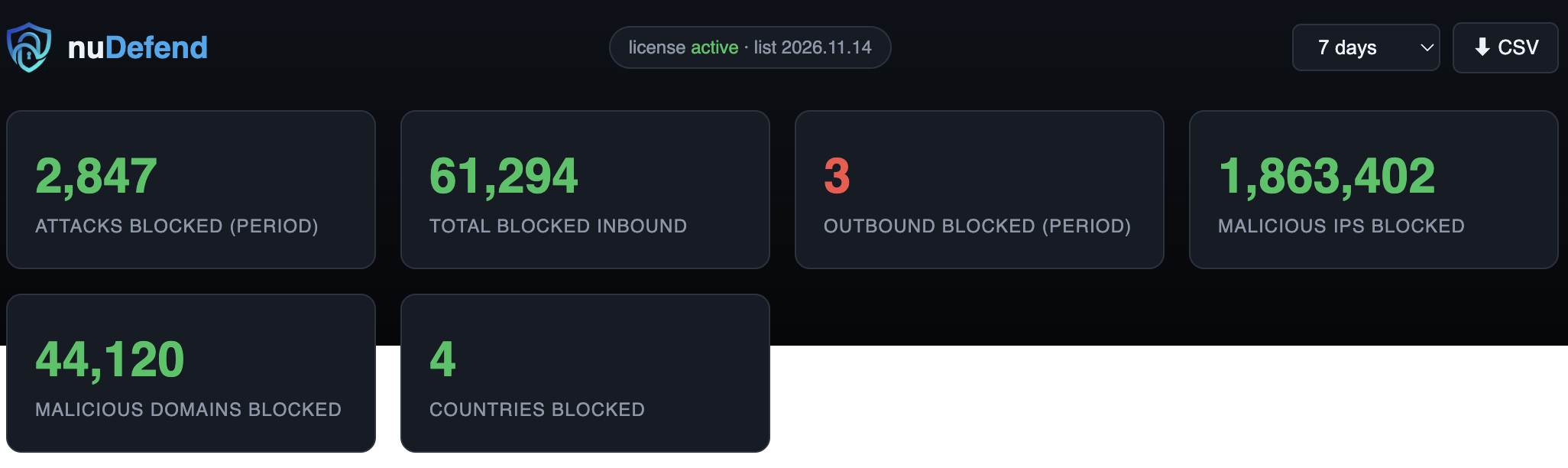
Accessing the dashboard securely
For security, keep port 8666 closed to the internet. The dashboard is meant to be reached only from the server itself. To open it from your own computer, create an encrypted SSH tunnel — run ssh -L 8666:localhost:8666 user@your-server, then open https://localhost:8666 in your browser. The traffic stays inside SSH and the access token is never exposed to the network.
Do not open port 8666 to the public internet. Exposing it puts the access token in proxy logs, browser history and referrer headers, and widens your attack surface. If you genuinely need direct remote access without a tunnel, restrict the firewall / security-group rule for port 8666 to your own IP address only — never 0.0.0.0/0.
Reading the dashboard
The top of the page shows five numbers. Here is what each one means:
Attacks blocked (period)
How many incoming malicious connections were blocked during the time range you selected (24 hours, 7 / 30 / 90 days). This is the headline number — attacks that never reached your services.
Total blocked inbound
The all-time total of incoming attacks blocked on this server since the agent was installed.
Outbound blocked (period)
Outgoing connections to malicious addresses that were stopped. If this is above zero it can be an early warning that something on the server tried to “call home” — the card turns red to draw your attention.
Malicious IPs blocked
The number of known-bad IP addresses currently loaded in the firewall. This list refreshes automatically every 30 minutes.
Malicious domains blocked
The number of dangerous domains currently blackholed on this server (malware, phishing, command-and-control and lookalike sites).
Below the numbers you will find:
What nuDefend blocks
A plain-language summary of the two protection layers and the kinds of threats each one stops.
Blocked per day
A bar chart of blocked attempts per day across the selected range, so you can spot spikes at a glance.
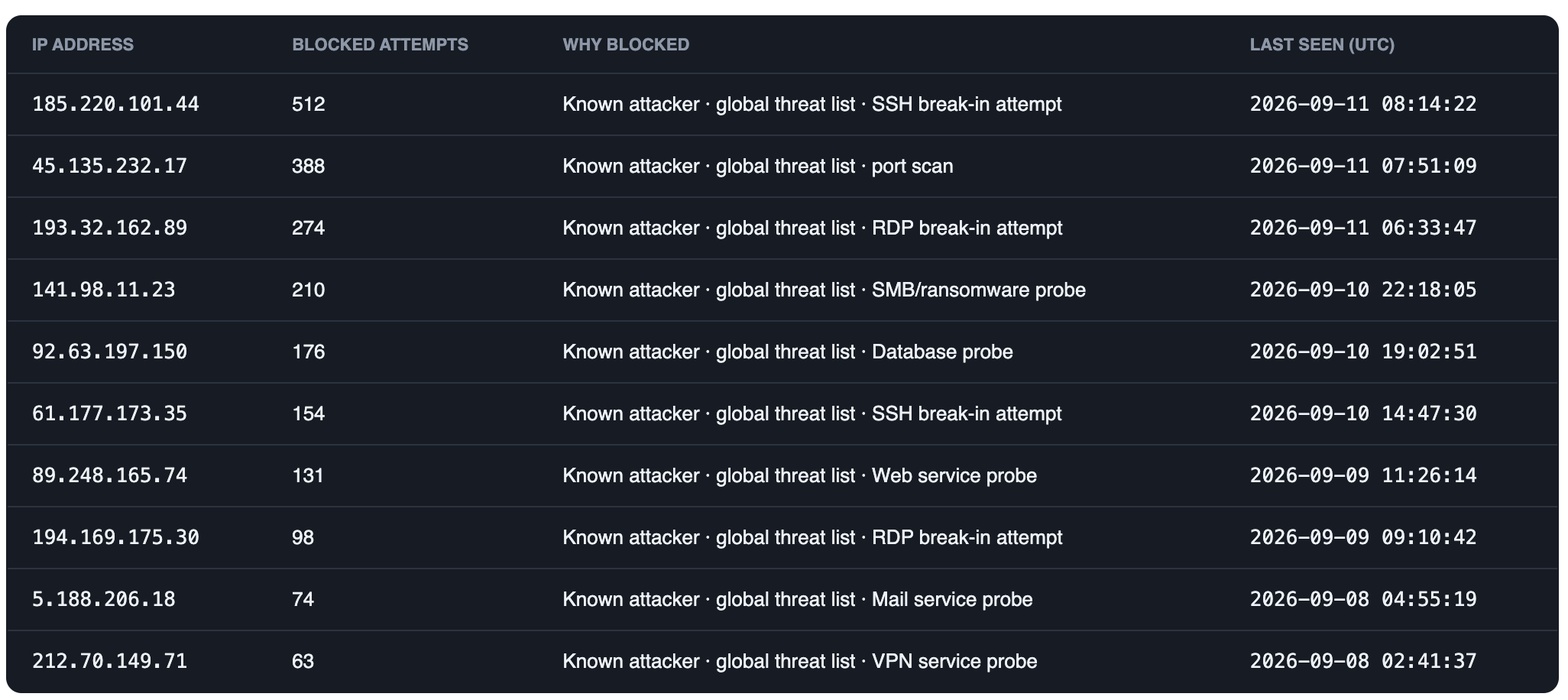
Top attacking IPs
A table of the addresses that hit your server most. Columns: IP address — the source of the attack; Blocked attempts — how many times it was stopped; Why blocked — a readable reason (e.g. “SSH break-in attempt”, “port scan”); Last seen (UTC) — when it last tried.
Time range selector & ⬇ CSV
Switch the whole page between 24 hours and 90 days, or download the full event list as a CSV file for your own records or reports.
A closer look

The dashboard refreshes itself every 60 seconds. Every number you see is computed on the server — nothing is ever sent to us.
Command reference
nudefend statusShow license status, blocklist version and how many packets were blocked.nudefend updateFetch and apply the latest signed blocklist now (also runs automatically every 30 min).nudefend dashboard urlPrint the local dashboard URL with its access token.nudefend dashboard statusShow whether the local dashboard is enabled.nudefend reportPrint a summary of what has been blocked on this server.nudefend exposeList every service listening on this server and who can reach it, from the server's own point of view. Read-only — it changes nothing. Add --json for machine-readable output.nudefend workloadsList the AI tools running on this server — model servers, chat interfaces, vector databases, automation platforms and MCP servers — whether on the host or inside a container, and what each one was identified by.nudefend egressList which workloads are being learned, how much has been observed for each, and which ones are not being learned and why.nudefend egress review <workload>Show every destination that workload reached, how much was sent, when it was first seen, and whether the period was observed in full. Read-only. Add --json for machine-readable output.nudefend block listList every active block on this server, when it was made and what it stops.nudefend block add <port>Show what would be blocked and what that stops. Changes nothing without --yes.nudefend block remove <id>Undo a block by the id shown in the list.nudefend versionPrint the installed agent version.sudo nudefend network statusShows whether protection is filtering queries, which address queries are sent to and whether it responds, how many queries have been blocked, and how many devices have been seen in the last 30 days. For machine-readable output, add --json.nudefend uninstallCleanly removes the agent, its firewall rules and its domain blocks. If network DNS protection is configured, DNS on the network continues to work until you remove it.What is exposed
nudefend expose lists every service listening on the server and how reachable each one is. It is read-only: it changes no firewall rule and suggests no fix. It reports and explains, and you decide.
local-only
Bound to 127.0.0.1 or ::1. Not reachable from outside the machine.
private-only
Bound to a private or VPN address only.
host-firewalled
Bound to every interface, but a local rule blocks it.
exposed-from-host
Bound to every interface with no local rule blocking it.
container-published
Listening inside a container and published to the host, so it is reachable from outside.
container-not-published
Listening inside a container and not published through host NAT. Direct routing, macvlan or cloud-level routing may still make it reachable.
This is measured from the server's own point of view. A firewall run by your cloud provider — an AWS Security Group or a DigitalOcean Cloud Firewall — is not visible from inside the machine, so a port reported as reachable may still be closed upstream. nuDefend will never call a finding "critical" on information it cannot see.
How risk is ranked
Every listening service is given one of three levels. Colour means risk and nothing else, so a page full of red does not mean a page full of problems.
Review
Reachable from outside, and not something we expect on that port. This is what deserves a look.
Expected
Reachable, and normal for that service — SSH on 22, a web server on 443, your VPN listener. Still reachable, still worth knowing, but not a surprise.
Low
Not reachable from outside: bound to the machine itself, to a private network, or blocked by a local rule.
The level is decided from both what the service is and how reachable it is. A service we cannot classify is never reported as low risk — if something cannot be determined, it says so instead of reassuring you. The report shows the services that nuDefend detects. If a service is not detected, that does not necessarily mean it is not running.
A cloud provider firewall — AWS Security Group, DigitalOcean Cloud Firewall — is not visible from inside the server. A port shown as reachable may still be closed upstream. Every report says this, every time.
Changes in what your server exposes
nuDefend keeps track of the services running on your server and checks continuously which of them are reachable from outside. Every few minutes it compares the current picture with the previous one.
When a service that was internal becomes reachable from outside, nuDefend detects the change and reports it. The claim is deliberately narrow: this service was not exposed before, and now it is.
It is not a vulnerability scanner and does not judge whether the service itself is secure. The purpose here is different: to catch a change in the server's exposure — the kind of change that is very easy to miss.
Why this matters
A database that goes from internal to public
The database can run for months with no change to the process itself. But if its configuration changes and it stops listening only on localhost, a new exposure has been created — even though no service was added to the server.
A container that published a port by mistake
A small change to a Docker setting or a deployment step can publish a port that was meant to stay internal. nuDefend sees the change in exposure and shows it.
A software update is not a change in exposure
A service is identified by where it listens — the protocol, port, address and namespace — not by its process name. Updating nginx with apt upgrade therefore raises no alert, even if the process name or version changed, as long as its exposure stayed the same.
You can check at any time:
sudo nudefend statusWhen nothing has changed, there is no alert. The same information appears at the top of the Overview screen in the dashboard, so a change in exposure is shown immediately rather than buried in a report or a menu.
The first check sets the baseline
On the first check after installation, nuDefend does not present existing services as new exposures. Instead it learns the current state of the server and uses it as the baseline for later comparison.
This avoids alerting on dozens of services that were already there at install time, and keeps the focus on what actually matters: what changed since.
Which AI tools are running on the server
AI tools enter a working environment faster than anyone documents them: a model server set up for a test, a vector database added to a project, an automation tool someone ran for a demo and left running. nuDefend shows which of them are active on this server, and how exposed each one is.
sudo nudefend workloadsRecognition covers local model servers, chat interfaces, vector databases, automation and agent platforms, and MCP servers — whether they run directly on the server or inside a container.
Every identification shows its reasoning
Each line states what the identification was based on — a systemd unit, an image name, the binary that is running, or a command-line pattern. A classification you cannot check is a classification you cannot rely on, so the reasoning is always shown.
It would rather miss than mislabel
A port alone is never enough to identify anything. Any service can listen on port 8000, and wrongly labelling a service as an AI tool is worse than labelling nothing — it ends with the wrong service being restricted. Identification requires a real identifying mark, not a probability.
The list of recognised tools updates for you automatically: a new tool becomes known to every protected server with no software update to install. A tool that is not on the list simply will not appear in the report — which does not mean it is not running.
Including tools that do not listen for connections
Some tools on a server listen for incoming requests: a chat interface, a database, a model server. Others do not listen for connections and only make outbound requests: an agent carrying out a task, an automation process, a scheduled script. nuDefend detects both types. For a tool that does not listen for connections, the ports column stays empty. This is correct: the tool is not listening.
Detection checks what is running on the server at the time of the check. A long-running tool will be detected; a task that starts and finishes immediately may not appear.
Where the AI tools connect
When an AI tool is compromised it usually reaches outward — to receive instructions, to transfer data, or to reach another service. nuDefend records the destinations each AI tool on the server connects to, the volume of traffic sent to each one, and when each destination was first seen.
Nothing is blocked on its own. The traffic is recorded and presented so it can be reviewed — and a destination that should be closed can be blocked from the same screen, for that workload only.
sudo nudefend egress review ollamaWhen the destination is recognised, it is named
An address on its own tells you nothing, and the reverse lookup usually returns only the hosting provider. Where a destination is recognised it is shown by name and in plain words, together with the setting that turns it off where one exists — a tool reporting to its own maker, a model service that requests and answers pass through, or somewhere software and models are downloaded from. Recognising a destination is not approving it: the row stays for review, because whether you want it is your decision. Where a destination is not recognised, that is stated rather than guessed at.
Volume matters more than the number of connections
A short connection that moved a few kilobytes and one that moved tens of gigabytes can look identical if all you look at is the number of connections. So nuDefend leads with the volume per destination. Even the destination that received most of it is not marked approved on its own — that decision stays with you.
Where there is no certainty, it is stated plainly
A destination is only marked as suggested once the period has been monitored in full. If the agent was not running for part of it, the report says so, shows which periods are missing, and draws no conclusions from partial data.
Traffic monitoring for tools running in containers relies on periodic checks rather than continuous monitoring, so it does not guarantee that every connection will be detected. nuDefend is intended for long-running services, not short-lived tasks. Information based on sampling is marked as such.
Shared services need reviewing too
One IP address can serve more than one party. Approving an address used by GitHub, for example, may also approve other services hosted at that same address. nuDefend therefore does not approve such destinations automatically; it marks them for you to review.
nuDefend presents facts, not conclusions it cannot prove
- Can be said with certainty: "Most of the traffic leaving this tool went to this destination."
- Cannot be concluded from that alone: "This is a data leak."
A backup, a model download, or other legitimate activity can look very similar at the traffic level. nuDefend presents the data and the context, and leaves the decision to you.
Restrict which destinations a tool can connect to
Monitoring shows where the tool connects. Here, you can turn that information into a policy: the tool can connect only to destinations you approve. All other destinations are blocked before traffic leaves the server.
The restriction applies to one tool only. The rest of the server—your website, backups, SSH and other services—continues to run as usual.
- 1
Start with monitoring
At first, nuDefend only records which destinations the tool connects to. Nothing is blocked. At the end of the monitoring period, you get a list based on observed traffic, not assumptions. - 2
Approve the required destinations
On the Outbound screen, you can review the destinations detected and approve those the tool actually needs to operate. Unrecognized or unnecessary destinations stay off the approved list. - 3
Enable the restriction
Once the restriction is enabled, the tool can connect only to approved destinations. Any attempt to connect to another destination is blocked before traffic leaves the server. The restriction applies only to the selected tool and does not change traffic from other services on the server. - 4
Check and confirm
After enabling the restriction, check that the tool still works as usual. If everything works, confirm the restriction to keep it active. If it is not confirmed within ten minutes, the restriction is removed automatically.
Allowing destinations by hostname
When you approve a destination by hostname, nuDefend resolves the name to addresses and adds them to the list. The list is updated periodically because the addresses used by large services change.
The permission applies to the addresses the name resolves to, not to the name itself. If the destination uses shared infrastructure, those addresses may also serve other services.
If the list cannot be updated, for example because of a DNS failure, the restriction stays active with the last known addresses. No additional access is allowed, and no approved destination is blocked. The interface shows when the list was last verified.
DNS access
To let the tool resolve names, nuDefend automatically allows it to contact the DNS servers the machine is configured to use, on port 53 only. Without this permission, the tool cannot reach any destination you have approved.
This permission is disclosed, not hidden. A compromised tool can use DNS queries to send information out. The permission is limited to one port and to servers the machine already contacts. Filtering the queries themselves is planned for the next version.
What happens if something goes wrong
The restriction expires on its own if the agent stops renewing it. In practice, this means a nuDefend failure will not leave the tool blocked with no way to unblock it, and the service will continue running.
When the restriction is enabled, the tool’s existing connections to destinations outside the approved list are disconnected. For the first activation, choose a time when a brief interruption will not disrupt ongoing work.
Which tools can be restricted
The restriction applies to almost every tool the system detects, whether it runs as a background service, runs in a container, or was started separately. The screen shows whether each tool is restricted and, if not, what is needed to restrict it.
In each such case, the screen explicitly states that the tool is monitored but not restricted, and explains what is needed before it can be restricted. Restrictions are available for tools not listed here.
What it looks up, not just where it connects
Destination restrictions determine which destinations a tool may communicate with. nuDefend adds a second layer: it also determines which addresses the tool may look up. A restricted tool can look up only the addresses you have approved. Every other lookup is blocked before it leaves the server.
Why this matters: information can be hidden in the query itself. A compromised tool can pack data into an address it asks to look up, send the query through an entirely standard channel, and read the response at the other end. Destination restrictions alone do not detect this at all: as far as they are concerned, the query went to an approved destination. This is a known, documented method of data exfiltration, and one of the quietest.
Approval applies to the exact address. Approving api.example.com does not approve its subdomains, because that is precisely where the information is hidden. A service that uses several addresses needs approval for each one.
Every blocked lookup appears on the screen with the tool’s name. This is not operational noise but a finding: it tells you that a particular tool tried to reach a destination you had not approved for it. Often, this is the first sign.
Two limitations to state up front. A tool that performs lookups through its own encrypted channel, rather than through the standard mechanism, bypasses this layer. And a failure in nuDefend does not stop anything: if our service goes down, the tool continues to look up addresses as usual, without filtering. This is deliberate: a failure on our side will not take down a service on yours.
If the restriction could not be enabled
The tool continues to run as usual. nuDefend does not stop the service just because applying the restriction failed.
The interface shows that the tool is running without the restriction, explains why and lets you try again. The agent also keeps retrying automatically.
What this restriction is not designed to do
This restriction limits the destinations to which a specific tool can send traffic.
It is not designed to protect against an attacker who already has full control of the server. In that situation, an attacker can stop nuDefend like any other software running on the system.
The mechanism is designed for a different scenario: a tool behaves unexpectedly or is persuaded to take an action you did not intend, but remains limited to destinations you approved in advance. Even if the tool itself behaves abnormally, it cannot simply start communicating with any destination on the internet.
Close an exposure, not just learn about it
When something on the server is reachable and should not be, nuDefend does not stop at reporting it. You can close it from the dashboard or from the command line, without editing configuration files or restarting services.
Before anything changes you are shown exactly what will be blocked and what that stops. Nothing is ever blocked unless you asked for it.
sudo nudefend block add 6333What cannot be blocked, and why
You cannot block the connection you are using to reach the server, nor access to the dashboard itself. This is not a setting that can be changed: whoever blocked them would find out they were wrong at the moment they could no longer connect and undo it. If you genuinely need to close them, do it from your provider's console, where you can still reach the machine.
Well-known ports — mail, DNS, databases — get a note before you confirm, not a refusal. There are good reasons to close any of them, and the decision is yours.
Everything is reversible, and everything is listed
Every block appears in a list with when it was made and what it stops, and can be undone in one click. A block you cannot find is a fault discovered two months later that nobody connects back to this product.
Blocks are kept on the server itself and reapplied after a restart. They are also removed in full when nuDefend is uninstalled — nothing is left behind that nobody can account for.
What the preview tells you before you confirm
Alongside what will be blocked, the preview says when a block would only be partial — when the same service answers on more than one address, so closing this one leaves the others open — and when the address belongs to a hosting provider, where addresses change over time and a rule written on one of them stays behind when the service moves. A block that looks complete and is not is worse than no block at all.
The other direction too
The same control blocks a destination a particular tool reaches — an AI tool connecting to an outside server it has no reason to reach, for instance. The block applies to that tool alone; the rest of the server is untouched.
sudo nudefend block add qdrant 203.0.113.9:443Blocking applies to the server where nuDefend is installed. It complements the cloud provider’s firewall but does not manage it or the rest of the network.
nuDefend blocks what you asked for and nothing else. There is no blanket policy and no automatic blocking — the product reports, and you decide.
Blocking password-guessing attempts
The agent reads login logs for services installed on the server and counts failed login attempts from each address within a 10-minute window. Addresses that exceed the threshold are blocked by the firewall. No configuration is needed: services are detected based on what is installed on the server, and logs are read from journald, or from log files if journald is unavailable.
SSH
6 failed login attempts in 10 minutes. Includes OpenSSH 9.8 and later, where failures are logged by the sshd-session process.
Mail: Postfix and Dovecot
10 failed login attempts in 10 minutes: SASL authentication in Postfix, and IMAP and POP3 logins in Dovecot.
FTP: vsftpd
6 failed login attempts in 10 minutes, based on /var/log/vsftpd.log.
Website login pages
10 failed password login attempts in 10 minutes on WordPress, phpMyAdmin, Joomla and Drupal login pages, based on nginx and Apache access logs. Three requests for a login page that does not exist on the server are treated as a scan, and the address is blocked.
Block duration
The first block lasts 60 minutes. If an address is blocked again within the same 24-hour period, the duration doubles each time, up to 24 hours.
Addresses that are not blocked
- An address with a successful login in the last 24 hours.
- The server's own public address, VPN networks and private addresses.
- A trusted admin address configured in the license. See Trusted admin addresses.
On Windows Server
After three failed login attempts from the same address within 10 minutes, the address is blocked from making new connections. Existing connections remain active. Monitoring covers RDP, SMB, WinRM, SQL Server and IIS. A signed-in Remote Desktop session from that address and trusted admin addresses are exempt from blocking.
Checking monitored services
sudo nudefend statusThe command lists the services whose logs the agent reads and the log source for each service on the auto-ban watch line. An installed service that the agent does not monitor appears on a separate line starting with !, along with the reason. The same information is also shown in the control panel.
Customization
Thresholds and block duration are set in /etc/nudefend/config.json under protection: sshMaxFailures, mailMaxFailures, ftpMaxFailures and banMinutes. Add nonstandard website access log paths (Caddy, lighttpd, custom vhosts) to webLogPaths. To disable automatic blocking entirely, set logAutoBan: false under protection.
Coverage boundary: ProFTPD is detected as installed, but the agent does not read its log, and it is shown as "not watched". MySQL and PostgreSQL are not monitored. Website login pages are monitored only through access logs in combined or common format.
Trusted admin addresses
A trusted admin address is a public IP address you use to manage your servers. nuDefend never blocks it automatically. On Windows servers, access from that address to the management ports is always open: RDP, SSH and WinRM.
The list is stored in the license, not on the server. This prevents anyone who compromises the server from exempting themselves from blocking.
Add an address
- 1
Open the license
In your nuVPN account, select Trusted admin addresses on the nuDefend license card. - 2
Add an address
Enter one public IP address and choose how long it stays valid, from one day to 365 days. The default is 30 days. - 3
The change reaches your servers
Within 30 minutes. To apply it immediately, restart the nuDefend service on the server.
Rules
- One public IP address per entry. You cannot add ranges, private addresses, CGNAT addresses or nuVPN server addresses.
- Up to 8 addresses per license.
- Each address is valid for one day to 365 days. The default is 30 days.
- The account owner receives an email whenever an address is added.
Apply immediately
On Windows, in a PowerShell window opened as administrator:
Restart-Service nudefendOn Linux:
sudo systemctl restart nudefendCheck the list on the server
On Windows, the following command displays the list received by the server. The command is read-only. To change the list, use your nuVPN account.
& "C:\Program Files\nuDefend\nudefend.exe" admin-ip listRecommendation: If you manage the server over SSH or PowerShell remoting from a fixed office IP address, add that address. That way, a mistyped password won’t lock you out.
How protection works
Two independent layers run on every protected server:
- Network layer — malicious IPs. Traffic to and from known-bad addresses is dropped at the kernel firewall (botnet C2, active scanners, brute-force sources and malware infrastructure), before it reaches your services.
- DNS layer — malicious domains. Dangerous domains (malware, phishing, scams, command-and-control) are blackholed system-wide, so no application on the server can resolve or reach them.
The blocklist is a single cryptographically signed file. The agent verifies its signature before applying it and refuses tampered or expired lists.
Coverage boundary: nuDefend operates at the server level, blocking traffic from sources known to be malicious and requests to dangerous domains. It does not inspect request content at the application level—that is the role of a WAF. It also does not absorb high-volume DDoS floods, which are stopped before they reach the server, at the network provider or CDN. When that protection is needed, nuDefend works alongside it.
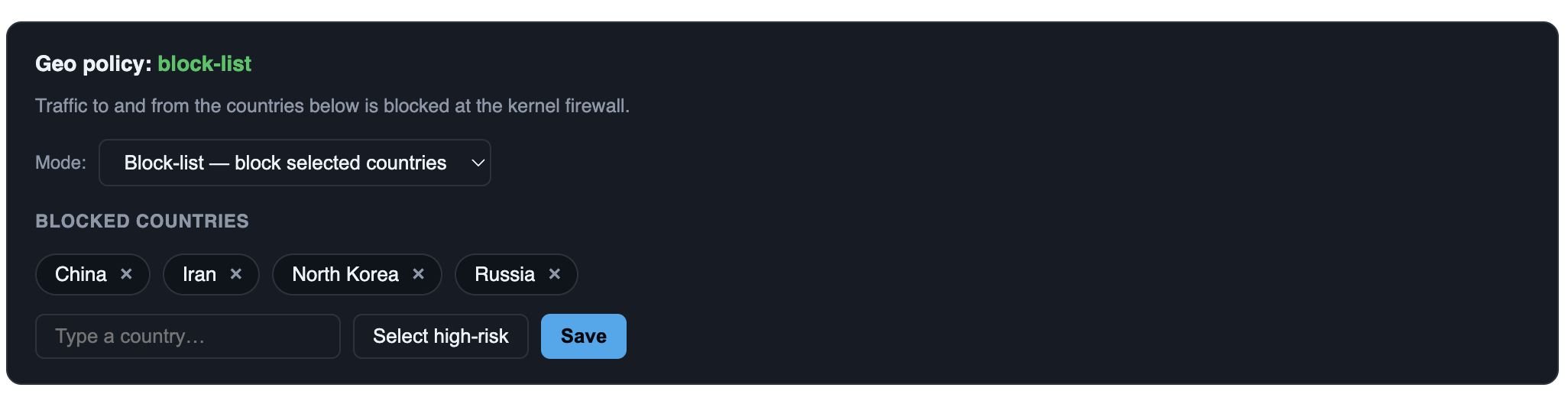
Country blocking (geo)
Beyond the automatic threat blocking, nuDefend lets you decide which countries are allowed to reach your server. You control it from the dashboard, and at this stage the feature is included free with every license.
Three modes
Open (default)
No country restrictions. Every country is allowed, and only the automatic malicious-IP and domain layers stay active.
Allow list
Only the countries you pick can connect, and everything else is blocked. Use this when your users all come from a known set of countries.
Block list
The countries you pick are blocked and the rest of the world is allowed. Use this to shut out regions you never do business with.
Setting it up
- 1
Open the dashboard
Reach the local dashboard over an SSH tunnel as described above, then find the Country blocking panel. - 2
Choose a mode
Pick Open, Allow list or Block list from the selector. - 3
Pick countries
In allow or block mode, search and add the countries you want. Selected countries appear as removable chips, and a Select high-risk shortcut adds the most common attack-source countries in one click. - 4
Save
Press Save. The new policy is applied to the firewall within seconds, alongside the automatic threat layers.
nuDefend never blocks the country your server itself is located in, even if you add it to a block list or forget to include it in an allow list. This keeps you from accidentally locking yourself out.
Country blocking is applied in both directions, incoming and outgoing, and reverses instantly: switch back to Open and press Save to remove every country rule.
Privacy
nuDefend processes everything on your server. Your logs, your traffic, the addresses that reach you, what is listening and which AI workloads were found — none of it is uploaded, and none of it reaches us. Reports and history live in a local database and nowhere else.
What does leave the server
Three outbound requests, all started by the agent, all to us. Nothing else opens a connection.
Licence check and threat lists — every 30 minutes
Sends your licence key, the agent version, the operating system (the platform, such as linux/amd64, and the OS name, such as Ubuntu 24.04) and a SHA-256 hash of this machine's ID. Returns the signed manifest: the threat lists, the AI crawler list, the AI workload catalogue and the ports worth reviewing.
Country lists — downloads.nuvpn.com, when country blocking is on
Sends nothing. A public file on our CDN.
Agent updates — downloads.nuvpn.com, when a new version is published
Sends nothing. Downloads the binary and a signed checksum, and verifies it before anything is applied.
The machine ID is hashed before it is sent; the ID itself is never sent. It exists so a licence bought for three servers cannot quietly run on thirty. It is stable — the same server always sends the same value — so we can count servers without receiving the ID itself. The operating system is sent to help you tell your servers apart and to offer each server the right update.
Billing & cancellation
Pricing is per protected server, per month. If a subscription lapses, nuDefend fails open — it stops blocking rather than locking you out — and can cleanly uninstall itself. There is no lock-in.
Troubleshooting
The installer says “permission denied”
You need administrator rights. Make sure the command includes sudo, or run it as the root user.
“status” shows the license as inactive
Check that you pasted the correct license key and that the server can reach the internet over HTTPS. Then run sudo nudefend update.
I can’t open the dashboard in my browser
Port 8666 is intentionally local-only. Open an SSH tunnel first: ssh -L 8666:localhost:8666 user@your-server, then browse to https://localhost:8666. Your browser may warn about the local certificate — that is expected for a self-hosted dashboard.
A legitimate address was blocked
This is rare. Contact support with the IP or domain and we will review it against the threat list.
I want to remove nuDefend
Run sudo nudefend uninstall. It removes the agent, its firewall rules and domain blocks cleanly, with nothing left behind.
Support
Need help? Contact us.