nuDefend Browser Guard documentation
nuDefend Browser Guard is a free browser extension. It warns you and stops visits to sites already known for phishing or distributing malware. This guide covers installation for each browser, how to check that protection is active, what to do on the warning page, and what you’ll find in the extension window and settings.
What is nuDefend Browser Guard?
The extension checks every site opened in a tab against a threat list. The list contains more than 400,000 known phishing and malware sites and is updated several times a day. If a site is on the list, a clear warning page appears instead. The check takes place within your browser.
- Available now for Edge and Firefox.
- Coming soon to Safari (iPhone, iPad and Mac) and Chrome.
- Free, with no account, ads or tracking.
The extension warns about sites already on the threat list. It does not scan downloaded files or replace antivirus software. A new site that is not yet on the list will not be blocked until it is added.
For protection beyond your browser: nuVPN also stops visits to these sites from other apps on your device, as long as it is connected.
Installation
Edge
- 1
Open the extension’s store page
- 2
Confirm that you want to add the extension
In the window that opens, select Add extension. The extension icon will appear in the toolbar, and protection will start immediately.
Firefox
- 1
Open the extension’s store page
- 2
Confirm that you want to add the extension
In the window that opens, select Add. Protection will start immediately.
Safari on iPhone and iPad
The Safari version is currently under review by Apple. Once approved, it will be available in the App Store as a single app for iPhone, iPad and Mac.
- 1
Install the app
Install nuDefend Browser Guard from the App Store and open it once. - 2
Turn on the extension
Open Settings and go to Apps > Safari > Extensions. Turn on nuDefend Browser Guard. - 3
Allow the extension to run on all websites
On the same screen, under Allow Extension, select All Websites and confirm. Without this permission, the extension cannot check the sites you open.
Safari on Mac
- 1
Install the app
Install nuDefend Browser Guard from the App Store and open it once. - 2
Turn on the extension
In Safari, open Safari > Settings > Extensions and select the checkbox for nuDefend Browser Guard. - 3
Allow the extension to run on all websites
Select Always Allow on Every Website and confirm. Protection is active once you confirm.
Chrome
The Chrome Web Store version will be available later. Until then, you can use the extension in Edge or Firefox.
Check your protection
The test address blocked-test.nudefend.com is always on the threat list. Open it in the browser where you installed the extension.
The nuDefend Browser Guard warning page appears
Protection is active in this browser. You can go back to safety, or select More options and then Continue anyway (I understand the risk). This takes you to a page confirming that protection is working.
A page opens saying the test address was not blocked
The extension is not active in this browser. The page explains what to do for your browser: add the extension, or turn it on and give it permission to run on all websites. Once you’ve done that, select Test again.
On iPhone and iPad, open the test address in Safari itself. The extension does not run in other browsers on the device, so the address will not be blocked there.
The warning page
When a site you open is on the threat list, the warning page appears instead. It shows the site’s name and explains why the visit was stopped.
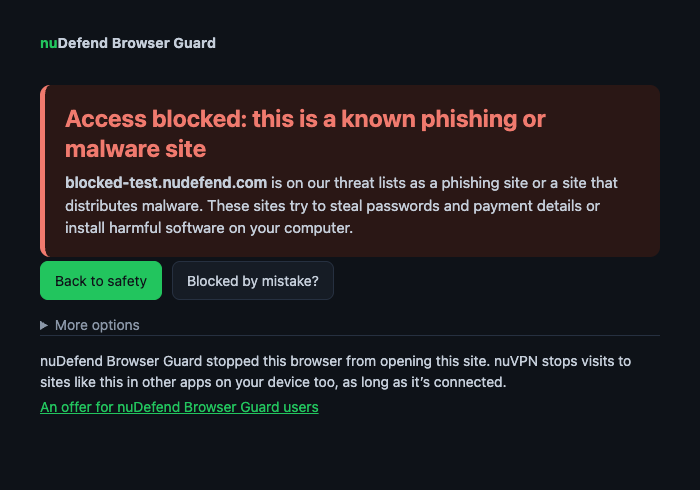
Back to safety
The main button takes you to a safe page provided by the extension. It does not take you back to the blocked site or the site that sent you there.
Blocked by mistake?
Think the site is safe? Click the button and confirm that you want to send a report. Only the site’s name is sent to us, not the full address or any details about you. We’ll review the report manually. If the site was blocked by mistake, we’ll unblock it.
Continue anyway (I understand the risk)
This option is under More options. If you’re sure the site is safe to browse, you can visit it. The site will not be blocked in this browser until you close the browser.
Sometimes Checking the site… appears briefly before the extension decides whether to stop the visit. This is normal: the site resembles an entry on the list, and the extension is finishing the check.
The extension window
Click the extension icon in the toolbar to open the extension window. It shows the protection status and the sites blocked in this browser.
Protection status
Protection is on is the normal status. Protection is off means you’ve turned off protection in settings. The list is out of date or Protection is not ready yet indicates a problem with the internet connection. Check your connection, and the extension will finish updating automatically.
Dangerous site blocks in this browser
The total number of times the extension has stopped a visit to a site in this browser.
Last list update
When the threat list was last updated. The list is updated several times a day.
Sites on the threat list
The number of sites currently on the list.
Recently blocked
The most recently blocked sites. Each entry shows the site’s name, when it was blocked and the number of attempted visits. The list is stored only in this browser and is not sent anywhere. Clear list clears the list and resets the counter.
The Settings link at the top of the window opens the settings page.
Settings
You can open the settings page from the Settings link in the extension window or from your browser’s extension manager.
Block phishing and malware sites
Turns protection on or off. Protection is on by default. When it is off, sites are not checked, and the extension window shows Protection is off.
Limit IP address exposure through WebRTC
WebRTC is used for video calls in the browser. Sites can use it to see your computer’s local network addresses. This setting hides those addresses and is off by default. When you turn it on, the browser asks for permission to change privacy settings. In most cases, video calls continue to work as usual. If another extension or an organization policy controls this setting, you’ll see a notice and won’t be able to change it here.
Appearance
Follow your system settings, or choose a light or dark theme. Your choice applies to the extension window, settings page and warning page.
Threat list
Shows when the list was last updated, when the extension last checked for an update, the number of sites on the list and the extension version. Check for updates now downloads an update immediately, without waiting for the automatic update.
Privacy at a glance
- The addresses of the sites you visit and your browsing history are not sent to us. Checks take place within your browser.
- The Recently blocked list and counter are stored only in this browser. You can clear them with a click.
- A Blocked by mistake? report sends only the site’s name, and only after you click and confirm.
- No account, ads, tracking or data sales.
For details on what is sent from the browser, when and why, see the extension’s privacy policy.
Troubleshooting
Instead of the warning page, a page opens saying the test address was not blocked
The extension is not active in this browser. In your browser’s extension manager, check that the extension is installed, turned on and allowed to run on all websites. For Safari, also check that it is turned on under Settings > Apps > Safari > Extensions and has permission to run on all websites. Then select Test again.
No warning appeared on a site you know is dangerous
The extension warns about sites already on the threat list. The list is updated several times a day, and a new site may be added after you’ve already visited it. You can check for an update right away using Check for updates now in settings. If the site is still not blocked, send its address to support@nudefend.com and we’ll check it.
A safe site was blocked
On the warning page, select Blocked by mistake? and confirm that you want to send a report. If you’re sure the site is safe to browse, select More options and then Continue anyway (I understand the risk). The site will not be blocked in this browser until you close the browser.
On iPhone, the test address opens in another browser
Safari extensions work only in Safari. Open Safari, enter blocked-test.nudefend.com and test again.
The extension window says the list is out of date or protection is not ready yet
The extension could not download the threat list. Check your internet connection. Until the update finishes, sites are checked against the last downloaded list. If no list has been downloaded yet, sites are not checked. You can speed up the update using Check for updates now in settings.
Support
Have a question about the extension? Email us at support@nudefend.com.